Generate Ideas with WeddingAIssistant
WeddingAIssistant allows you to generate visual wedding inspiration from scratch using AI. Choose what you want to design and start creating in seconds.
Generate ideas using predefined forms
WeddingAIssistant allows you to create ideas using predefined forms that you will find in the "Ideas Generator (work WITHOUT images)" section.
In this section you will find an optimized form for each tool, such as the dress generator, outdoor decorator, or ceremony designer. These forms are prepared so that you only need to select your preferences and click the submit button.
Note: Below we describe how wedding dress designs can be generated, but the workflow is exactly the same for all idea tools.
Generate custom dress designs
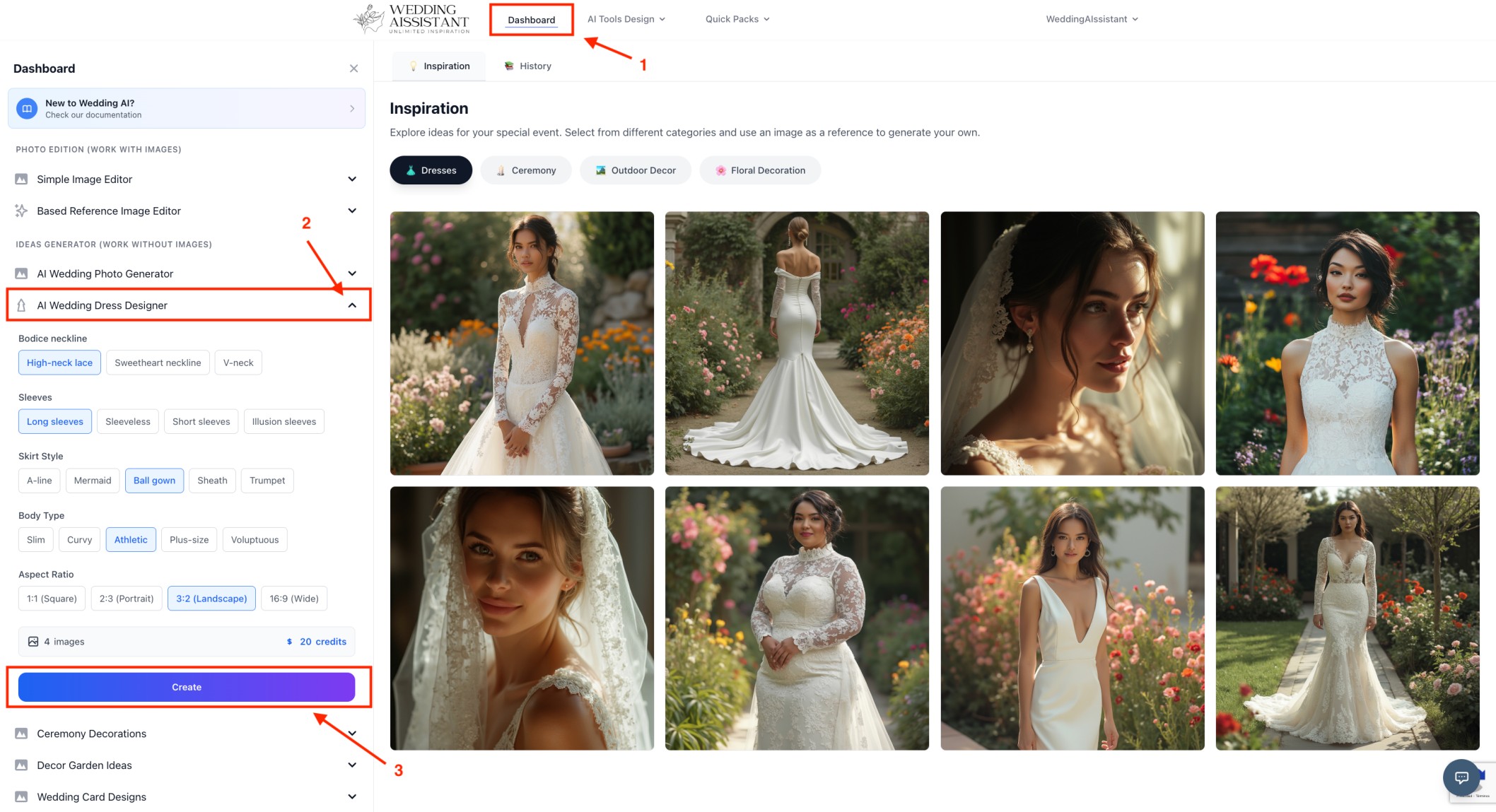
1. Access the "Dashboard" page
2. Select the "AI Wedding Dress Designer" form and set your preferences
3. Click "Generate" to see unique wedding dress ideas created just for you.
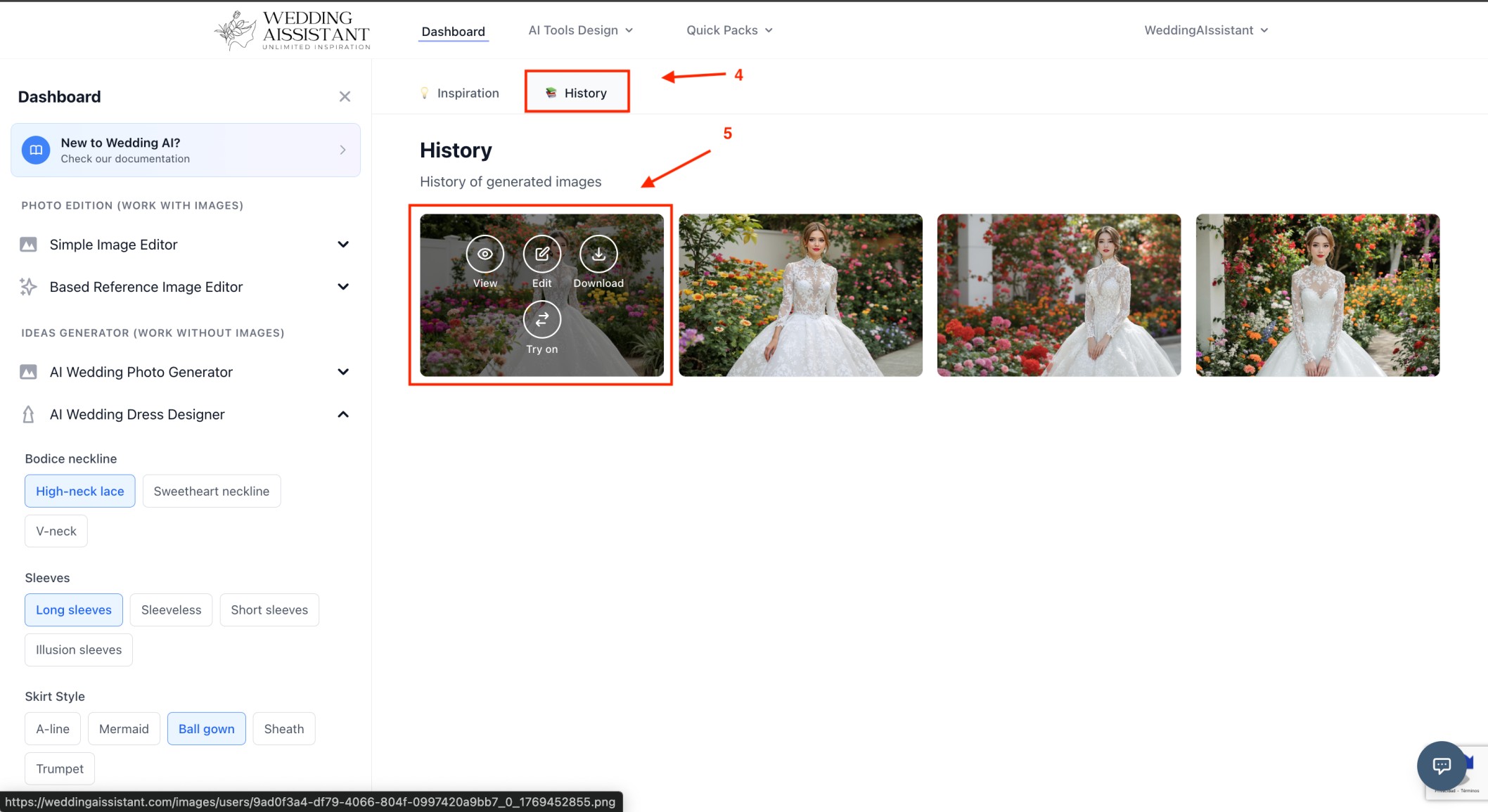
4. Access the History tab to view the results
5. Select your desired result and download it or use it for another tool
Generate ideas using the AI Wedding Photo Editor
WeddingAIssistant provides a complete editor that allows you to describe instructions in a detailed and fully personalized way to create images exactly as you want.
This form is accompanied by a series of advanced predefined prompt sticks that you can use as examples or as a base for your images.
Generate custom dress designs
1. Access the "Dashboard" page
2. Select the "AI Wedding Photo Editor" form
3. Set your preferences or describe your prompt.
4. Click "Create" to see unique wedding dress ideas created just for you.
5. Access the History tab to view the results and select your desired result and download it or use it for another tool
Generate ideas using Inspiration Mode
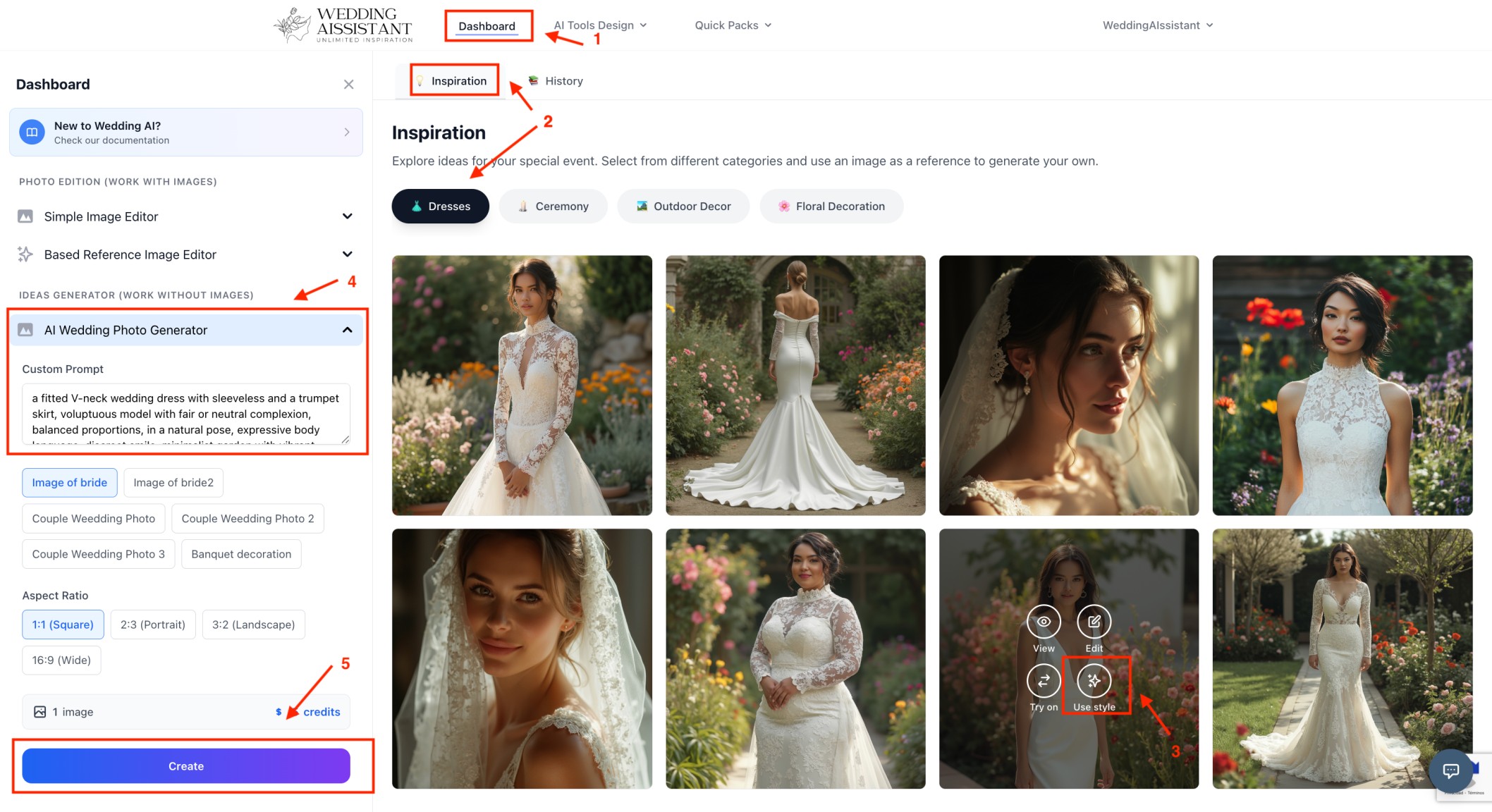
To make image generation easier and allow access to unique designs, WeddingAIssistant includes the "Inspiration" tab located on the Dashboard page, where you will find different images grouped by categories.
Below are the steps to create images using the "Use Style" option, which will preload the original prompt used for the selected image into the AI Wedding Photo Editor form.
This prompt will generate an image similar to the one you are viewing and will adapt the image as you modify the instructions.
Note: The example below uses the Dresses tab, but it applies exactly the same to all tools.
Generate designs from images with Inspiration Mode
If you want to design a dress from a predefined or previously created existing image:
1. Access the Dashboard page
2. Access the "Inspiration" section and select the "Dresses" tab
3. Click on the image you want and select the "Use style" option
4. Modify the prompt that will be loaded in the "AI Wedding Photo Editor" form
5. Click on the "Create" button
6. Access the History tab to view the results